Keep Your Robot Vacuum Running Smoothly: A Guide to Firmware Updates
This guide to update firmware on smart robot vacuums explains the practical details worth knowing before you make your next decision.
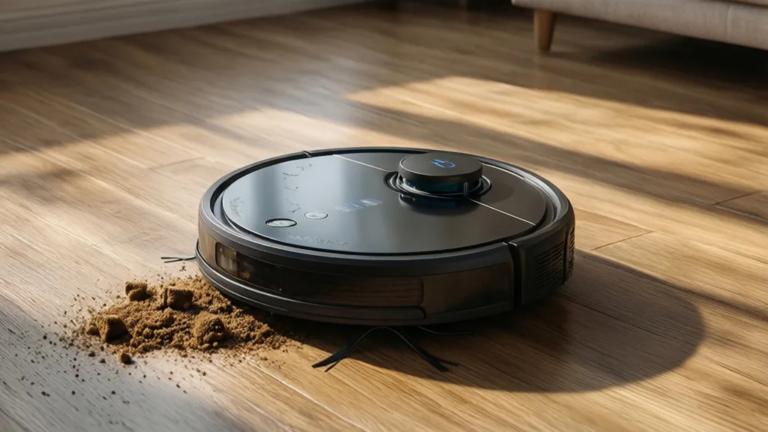
Honestly, when I first got my smart robot vacuum, I mostly just set it and forgot it. It did its job, and I was happy. But then I started noticing little quirks – it would sometimes get stuck in the same spot, or a new feature I’d read about wasn’t showing up in the app. It turns out, like any smart device, these little cleaning wizards need their software updated. Keeping the firmware on your smart robot vacuum current is actually pretty straightforward, and it makes a big difference in how well your device performs.
My research journey into this topic really started because I was curious about why some vacuums seemed to get better over time, while others just… stayed the same. The answer, overwhelmingly, was firmware. It’s the underlying software that controls everything your robot vacuum does, from navigation to cleaning patterns. So, if you’re wondering how to update firmware on your smart robot vacuum, you’re in the right place. We’ll walk through the common ways to do it and what to expect.
Table of Contents
update firmware on smart robot vacuums: What You Need to Know
You might be thinking, ‘Does it really matter?’ And honestly, for basic cleaning, maybe not immediately. But think about it: your robot vacuum is a complex piece of tech. Manufacturers release firmware updates for a few key reasons. First, they often fix bugs that could be causing your vacuum to behave erratically – maybe it’s missing spots, getting lost, or having trouble returning to its dock. Second, updates can introduce new features or improve existing ones. I’ve seen updates that improved obstacle avoidance or made the mapping more accurate, which is kind of wild to think about for a device that just cleans floors. Finally, and importantly, updates can patch security vulnerabilities, which is something we should all be mindful of with connected devices in our homes. Keeping your firmware up-to-date ensures your robot vacuum is running as efficiently and securely as possible.
Finding the Latest Firmware for Your Model
Okay, so how do you actually get the update? For most modern smart robot vacuums, the process is tied directly to the manufacturer’s mobile app. This is usually the easiest and most direct route. When an update is available, the app will typically notify you. You’ll see a banner or a prompt within the settings menu. I always check the app periodically, especially if I know a new feature was announced. If you don’t see an automatic notification, you might need to manually check within the app’s device settings. Some manufacturers also list firmware versions and update notes on their support websites, which can be helpful if you’re troubleshooting or just want to know what’s new. It’s rare these days, but some older or simpler models might require connecting to a computer via USB, though that’s becoming less common for Wi-Fi-enabled devices.
The Step-by-Step Process: App-Based Updates
This is the most common scenario, and thankfully, it’s usually pretty simple. First, make sure your robot vacuum is powered on and connected to your home Wi-Fi network. Then, open the official app for your robot vacuum brand on your smartphone or tablet. Navigate to the device settings – this is often represented by a gear icon or found under a ‘My Devices’ section. Look for an option related to ‘Firmware Update,’ ‘Software Update,’ or ‘About Device.’ If an update is available, you’ll likely see a button to ‘Download and Install’ or ‘Update Now.’ The app will then guide you through the process. It’s really important during this time that you do not turn off the vacuum or disconnect it from Wi-Fi. The update can take anywhere from a few minutes to over half an hour, depending on the size of the update and your internet speed. Your vacuum might restart itself during the process, which is normal. Once it’s done, the app should confirm the update was successful, and your robot vacuum will be running the latest software.
Troubleshooting Common Update Issues
What if the update doesn’t go smoothly? This is where things can get a bit frustrating, but usually, there’s a fix. The most common hiccup is the update failing to download or install. If this happens, the first thing I’d check is your Wi-Fi connection strength. Is the vacuum close enough to the router? Is your internet stable? Sometimes, simply restarting your router and the vacuum can resolve connectivity issues. If the app says the update failed, try initiating it again. If it repeatedly fails, check the manufacturer’s support website or contact their customer service. They often have specific troubleshooting steps for firmware issues. Another thing to consider is ensuring your app itself is up-to-date, as an outdated app can sometimes interfere with the firmware update process. Honestly, most of the time, a stable internet connection is the key.
Manual Checks and Advanced Settings
While most updates are automatic or prompted through the app, I like to know I can check manually. If you’re not getting notifications or you suspect your vacuum isn’t on the latest version, go into the app’s device settings and look for a ‘Check for Updates’ button. Some high-end models might offer advanced settings related to updates, like scheduling them or choosing whether to install automatically. For most buyers, though, the default settings are fine. I would still check the app every few months, just to be sure, especially if you’ve heard about new features rolling out. It’s a small step that keeps your smart home devices performing at their best.
Frequently Asked Questions
How often should I update my robot vacuum's firmware?
There’s no strict schedule, but manufacturers typically release updates a few times a year. It’s a good practice to check for updates via the app every couple of months, or whenever you hear about new features being released for your model. If your vacuum is working perfectly, you don’t need to obsess over it, but staying reasonably current ensures you get bug fixes and performance improvements. Keeping the firmware on your smart robot vacuum updated is key to its longevity and functionality.
Can I update my robot vacuum without Wi-Fi?
Generally, no. Most smart robot vacuums rely on a stable Wi-Fi connection to download and install firmware updates. The update files are downloaded from the manufacturer’s servers over the internet. If your robot vacuum doesn’t have Wi-Fi capabilities, it likely won’t receive firmware updates at all, or it might use a different, less common method like a direct USB connection, which is rare for newer models. Ensure your robot vacuum’s Wi-Fi connection is strong and stable for updates.
What happens if the firmware update fails mid-process?
If a firmware update fails mid-process, it can be concerning. The best first step is to try restarting both your robot vacuum and your home router, then attempt the update again. If it continues to fail, check the manufacturer’s support website for specific troubleshooting steps for your model. Sometimes, a factory reset of the vacuum might be necessary, but this should be a last resort as it will erase custom settings and maps. Contacting customer support is often the most direct way to resolve persistent firmware update failures.
When you revisit update firmware on smart robot vacuums, start with the practical outcome you want to achieve.
Useful next reads for this topic include on device ai processing robot vacuums, are stair climbing robot vacuums worth the money, and robot vacuum detect dog poop AI.
Conclusion
Keeping your smart robot vacuum’s firmware up-to-date is a simple yet effective way to ensure it performs at its best. By understanding how to check for and install updates, usually through the manufacturer’s mobile app, you can unlock new features, fix annoying bugs, and maintain optimal cleaning performance. Don’t let your smart device become a dumb one; a few minutes spent on updates can save you hassle and keep your floors cleaner. It’s a small part of smart home maintenance that really pays off.